| EKMD Central

Welcome
HOME

huji logo

Division for Computation, Communication & Information
Medical Branch - Ein Karem Campus

Working during an emergency period

עברית

Working from home

Secure Access from Home Using Rumba VPN
Zoom and Panopto
Connection from home for Ein Karem users
Please note: For connection to your work computer, your work computer must be powered on, connected to the network, and be setup by your Computer Coordinator to accept remote connections.
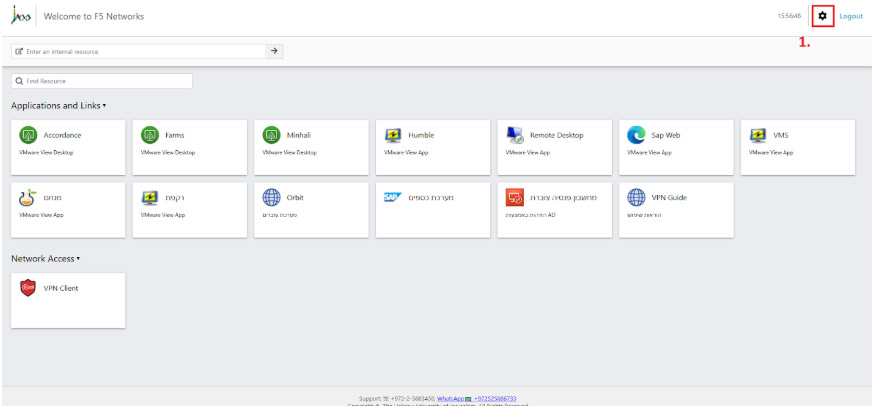
1. Press on the Gear icon, located on the top right corner.
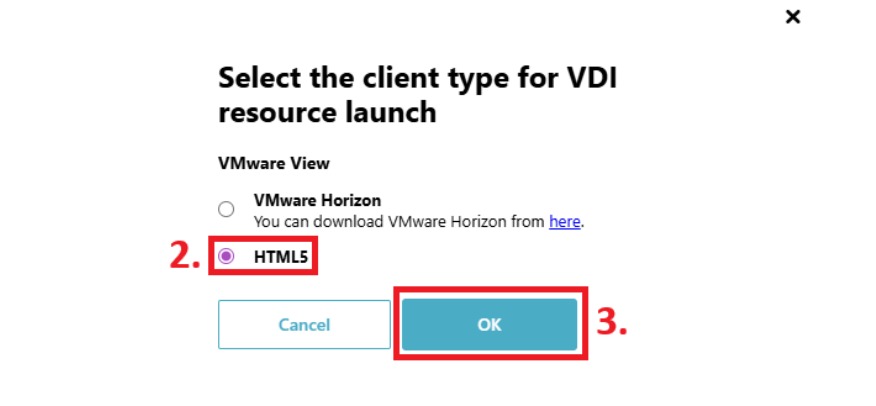
2. Make sure that you have HTML 5 checked. Note, you may also choose VMware Horizon; however, you will need to install it first.
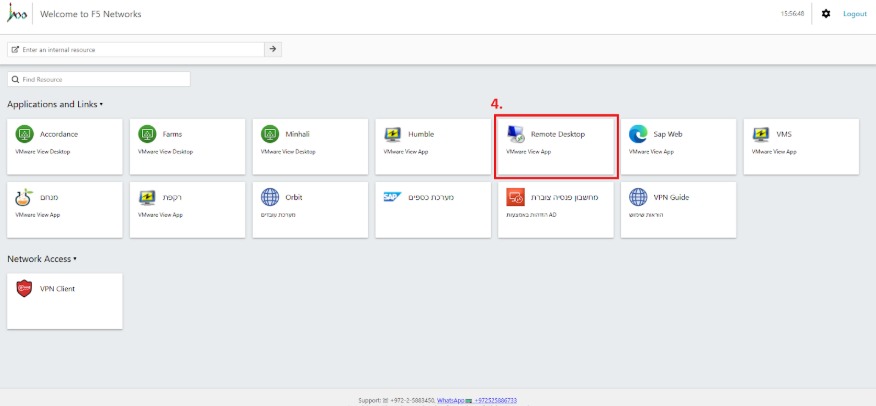
3. Click on the "Remote Desktop" option.
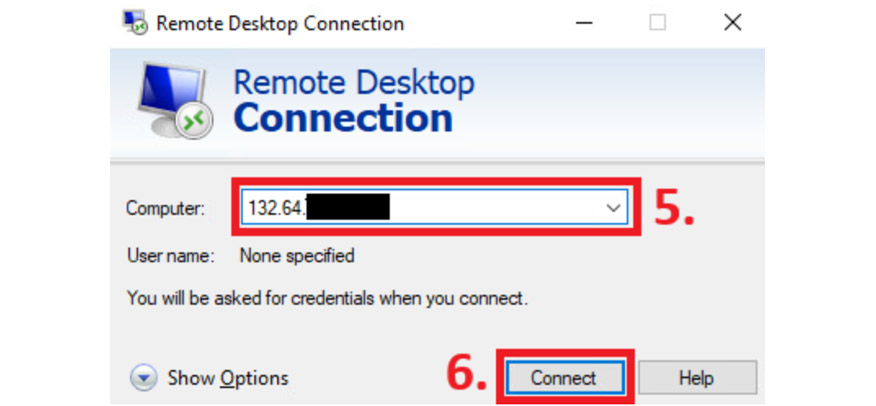
4. Specify the IP address of the computer.
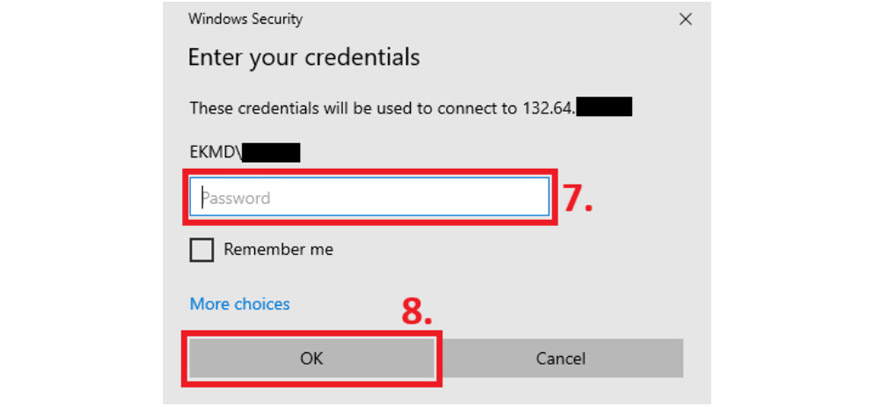
5. Type in the password of your EKMD account. NOTE: If the username that appears next to "EKMD\..." is not correct, please click on "More choices" and in the username field type: EKMD\yourUsername
How to enable remote desktop on the work computer
Please note: For remote desktop to work from home, it must be first enabled on your work computer. You can ask your computer coordinator to enable this for out; however, you may also do it manually if you wish to do so using the following steps:
1. Open settings.
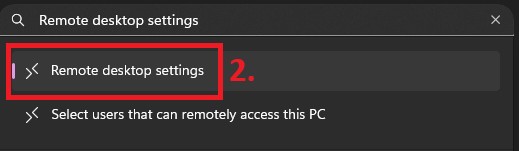
2. From settings, find or search for “Remote desktop settings”
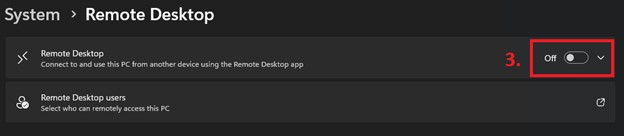
3. Enable “Remote Desktop.” Note that you will need admin privileges to enable the feature.
4. Open the list of users that can access the computer remotely by clicking on “Remote Desktop users”
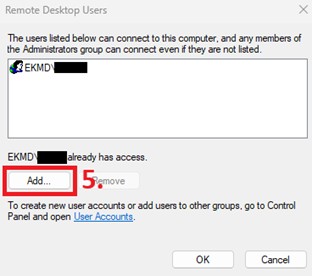
5. If you wish to add another user that is not listed, click on “Add…” Note: You can also use this step to remove access to users by clicking on the user and then “Remove.”
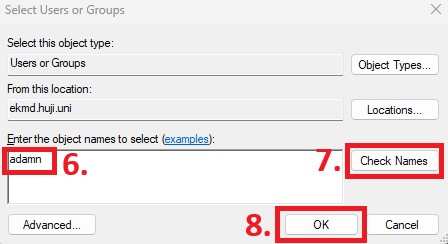
6. Type EKMD username of the user you wish to allow remote control access to. Click on “Check Names” then “OK”. Note if there are users with similar names, a list of users will open; be sure to select the correct one from the list.
Finding the computer’s IP address
In order to connect to your work computer from home via remote desktop you now must find the computer’s IP address. It can be found on a Division for Computation's white sticker. This should start with “132.64…”. Alternatively, you can find it manually using the following steps
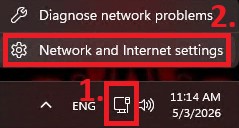
1. Right click on the network icon, found on the bottom right corner of the screen, just next to the speaker icon and click on “Network and Internet settings”
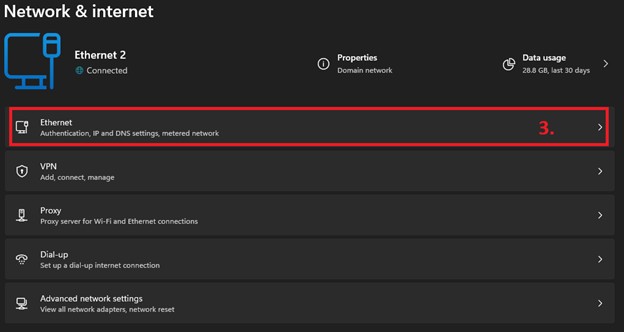
2. Click on “Ethernet”
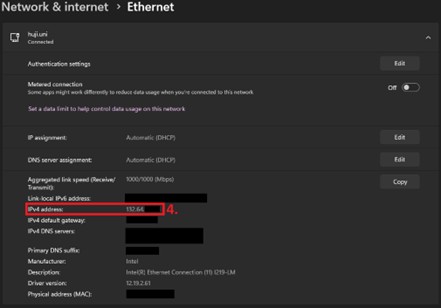
3. The computer’s IP address will be listed next to “IPv4 address”
Connection to the University's resources (Orbit, SAP, etc.)
Where are some University's systems you can use without connecting to your work computer.
After connecting to the Rumba VPN client, you can now visit all internal websites, such as:
Menham + Rakefet are available as links to virtual computers, located on the rumba home page, which is available after connecting to MyPlace.
Telephony
If you would to forward calls from your office phone to your personal phone from home, you will have to contact the Telephony department.

Working from Campus

List of shelters and protected areas

Shelters and protected areas, Campus Ein-Karem

Building 3-4 | -2 floor | Shelter near Hall T
New Dental Medicine | -2 floor | Shelter
Old Dental Medicine | -2 floor | Shelter
School of Pharmacy | -2 floor | Shelter
Student Center | -2 floor | Floor protected space (Mamak) near Computer Farm
Student Center | -1 floor | Floor protected space (Mamak) near Student Union
Student Center | Entrance floor | Floor protected space (Mamak) near cafeteria kitchen
Student Center | Half floor | Floor protected space (Mamak)
Student Center | 1 floor | Floor protected space (Mamak)
Botnar Building | -1 floor | Floor protected space (Mamak)
Botnar Building | 0 floor | Floor protected space (Mamak)
Botnar Building | 1 floor | Floor protected space (Mamak)
Botnar Building | 2 floor | Floor protected space (Mamak)
Botnar Building | 3 floor | Floor protected space (Mamak)
Botnar Building | 4 floor | Floor protected space (Mamak)
Botnar Building | Parking | Protected Space
Building 200 (Dorm) | Basement | Shelter
Building 300 (Dorm) | Basement | Shelter
Building 400 (Dorm) | Basement | Shelter

Full list, all the campuses (Hebrew).
Emergency phone numbers
Mount Scopus Campus 02-5883000
Safra Campus 02-6585000
Ein Karem Campus 02-6757000
Rehovot Campus 08-9489000

Useful links

Video tutorial for remote desktop + phishing awareness
Phishing awareness presentation
National Emergency Portal